
Using the eMotion app.
A screen-by-screen walkthrough of everything you need: creating an account, logging in, topping up your wallet, and starting a charge. Work through the four flows in order, or jump straight to the one you need.
Something not working? Contact the customer support hotline and we'll help you out.
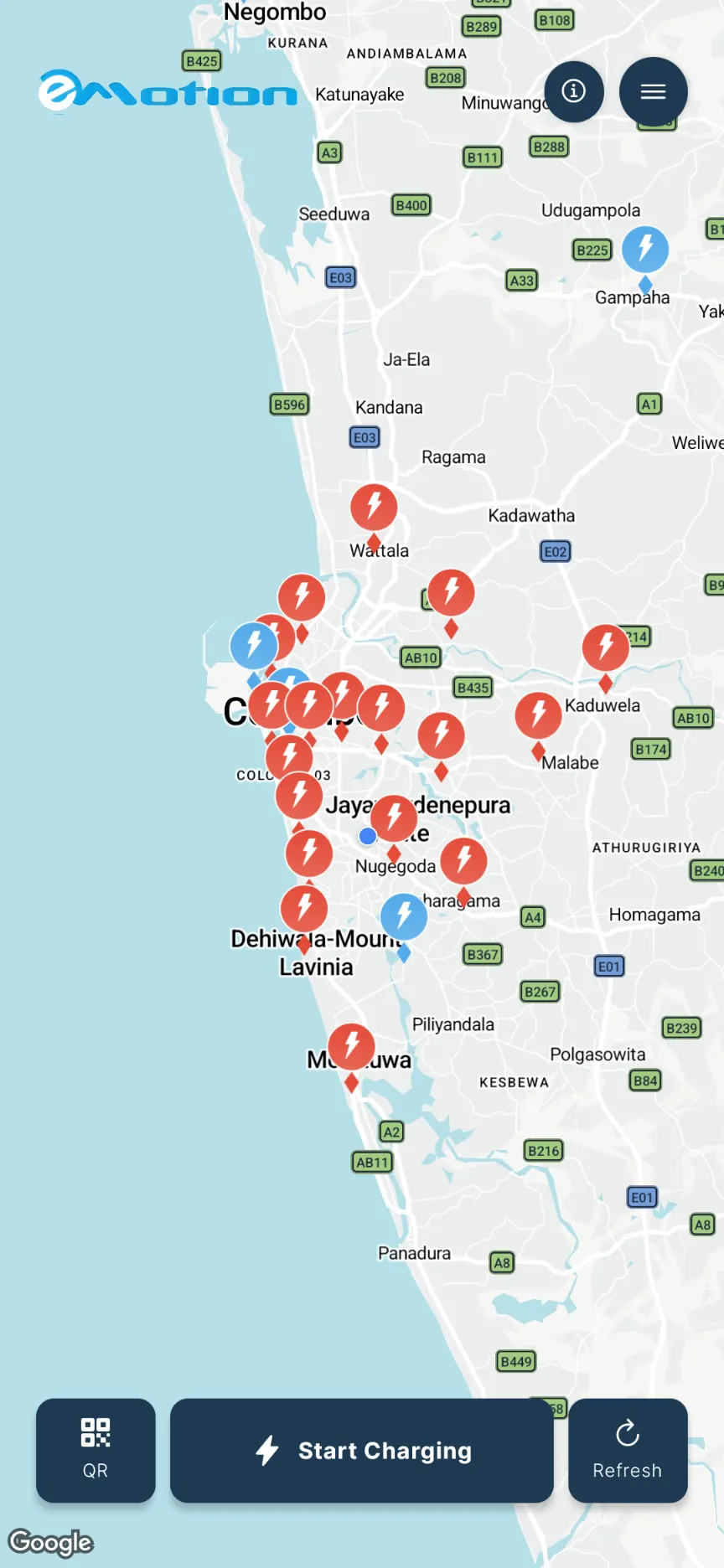
Creating an account
From first open to a verified profile. Takes under two minutes.
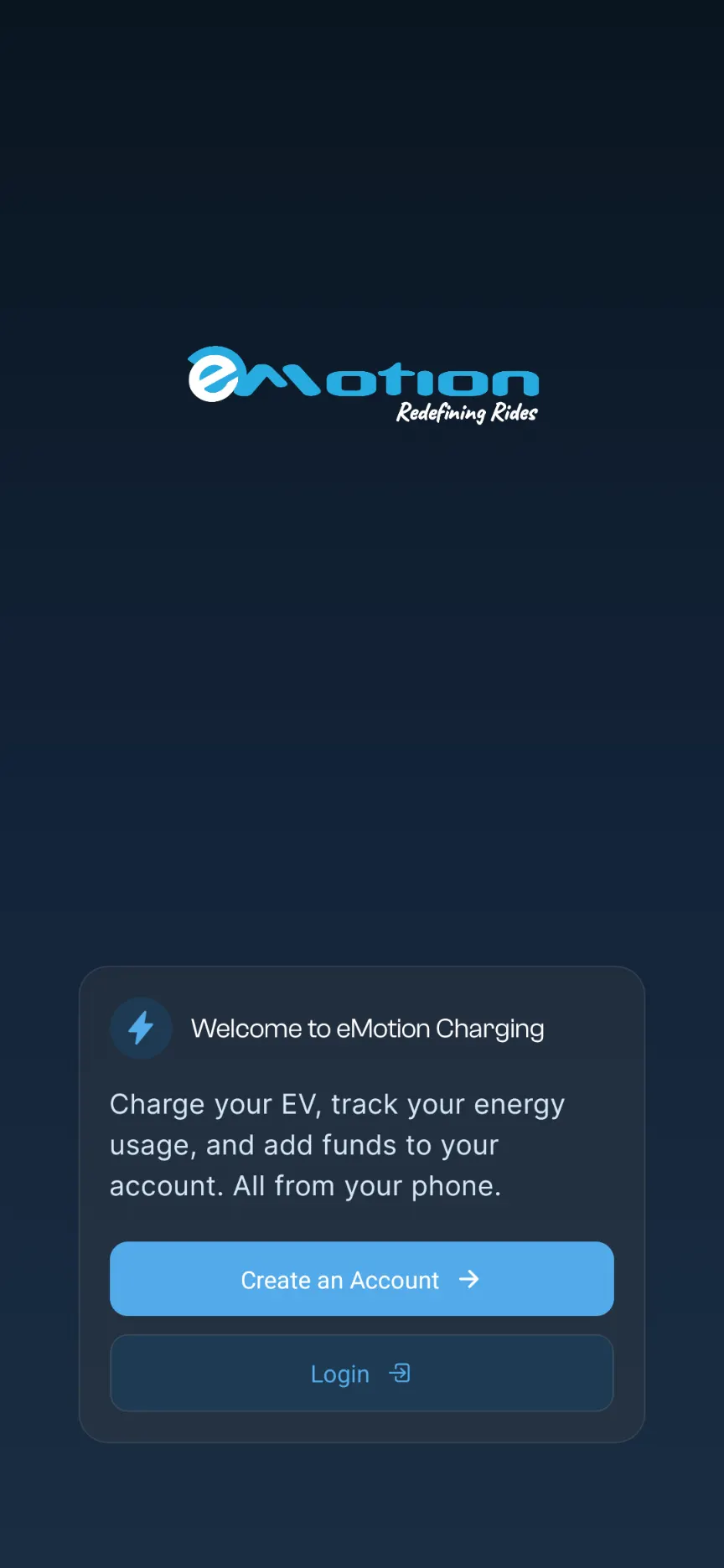
Welcome
Open the eMotion app and tap “Create an Account” on the welcome screen.
Step 1 of 6
Logging in
Already registered? Back on the road in a few taps.
Welcome back
Open the app and tap the “Log In” button.
Step 1 of 3
Topping up your wallet
Save a card once for one-tap top-ups, or pay one-time without saving anything.
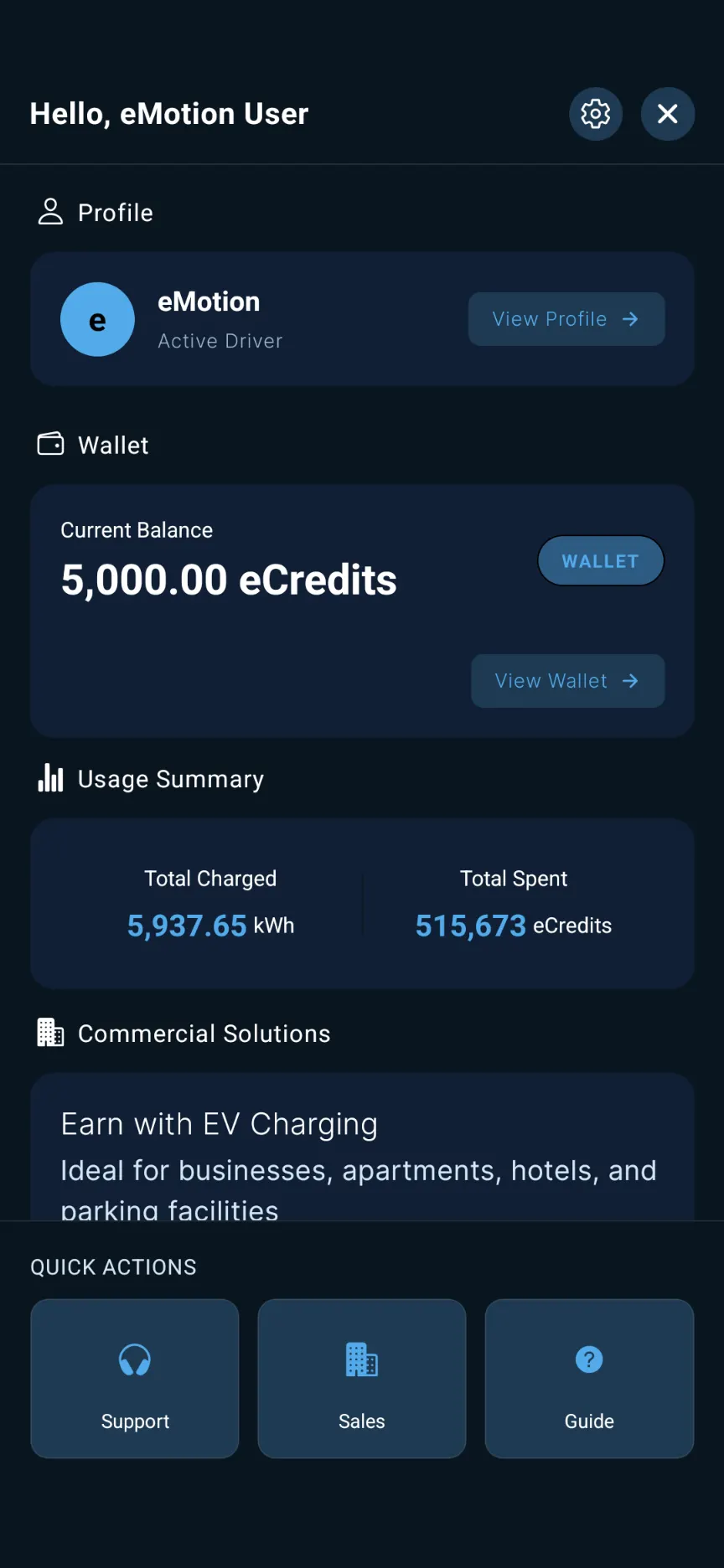
Open your wallet
From the home menu, tap “View Wallet” to view your wallet, and top-up options.
Step 1 of 6
Starting a charge
From plugging in to unplugging — start, monitor, and close a session from the map.
Locate your charger
Find a charger on the map and note the PIN shown on the charger, then plug the connector into your car.
Step 1 of 5